
Welcome to Access Tab Documentation
Access Tab is your all-in-one browser productivity extension. Effortlessly organize tabs, boost focus, and customize your browsing experience.
- Understand all features and how to use them
- Configure settings for your workflow
- Install Access Tab on your browser in minutes
- Find tips for maximizing productivity
Powerful Features for Better Browsing
Access Tab helps you stay organized and productive with these key features
Smart Tab Organization
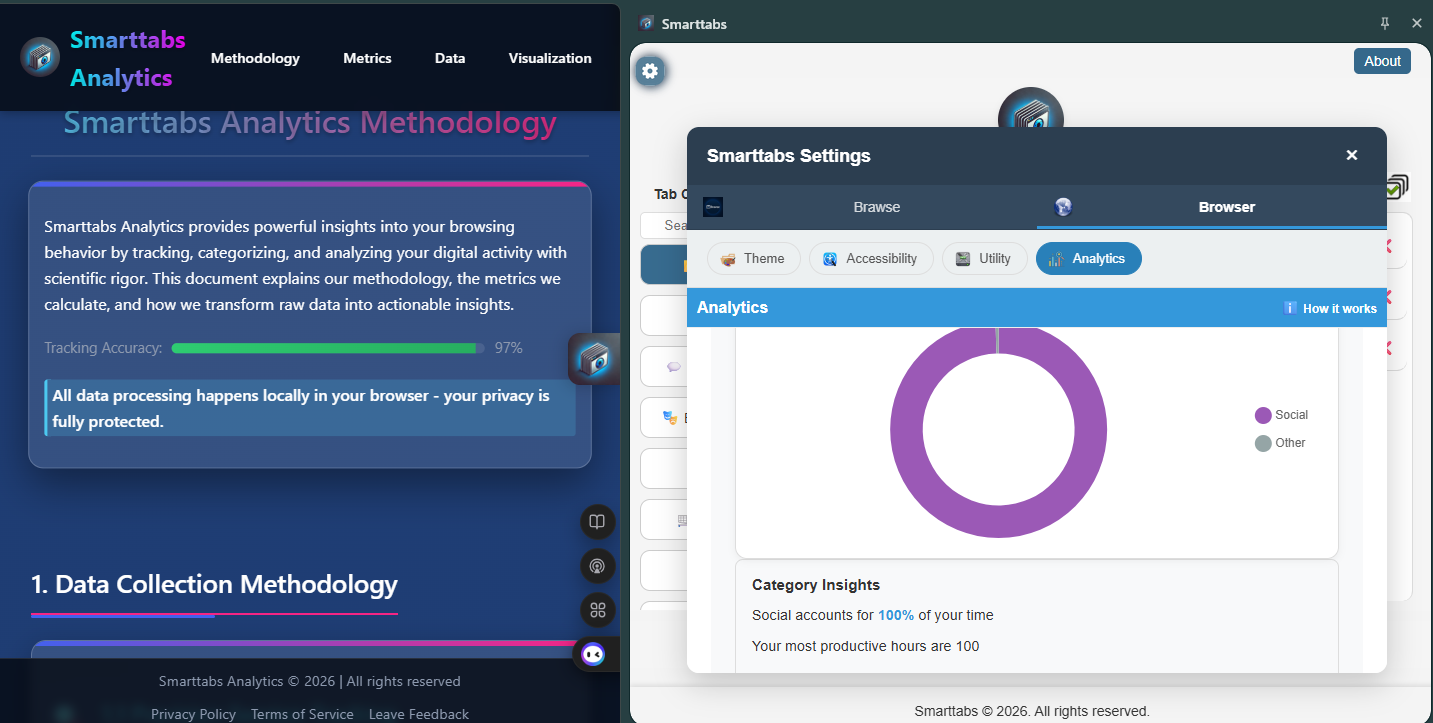
Automatically categorize and group your tabs with intelligent detection. Keep work, social, and shopping tabs neatly organized.
Performance Optimization
Reduce memory usage by intelligently managing inactive tabs without losing your work. Keep your browser running smoothly.
Productivity Analytics
Gain insights into your browsing habits with detailed analytics and improve your workflow efficiency.
Customizable Interface
Personalize your browsing experience with themes, layouts, and visual preferences that match your style.
Focus Mode
Temporarily hide distracting content and focus on what matters most with our intelligent focus mode.
Local by Design
Your browsing data and preferences stay in your browser instead of a hosted account database.
Advanced Accessibility
Designed with accessibility in mind, featuring high contrast modes, screen reader support, and keyboard navigation.
Built-in Dictionary
Multiple dictionary sources with over 20 languages, etymology, and pronunciation guides built right into your browser.
Content Filtering
Block distracting content like social media, gaming, or news sites to match your productivity preferences.
Theme Customization
Choose between dark, light, or system theme. Find your perfect visual environment for maximum productivity.
Install Access Tab
Get started with Access Tab in just a few minutes
Installation Steps
Choose Your Browser
Click the appropriate store button above for your browser.
Add to Browser
Click "Add to [Browser]" and confirm the installation.
Pin the Extension
After installation, pin Access Tab to your toolbar for easy access.
Start Using Access Tab
Click the Access Tab icon to open the interface and start organizing your tabs.
Access Tab Settings
Customize your Access Tab experience with powerful settings
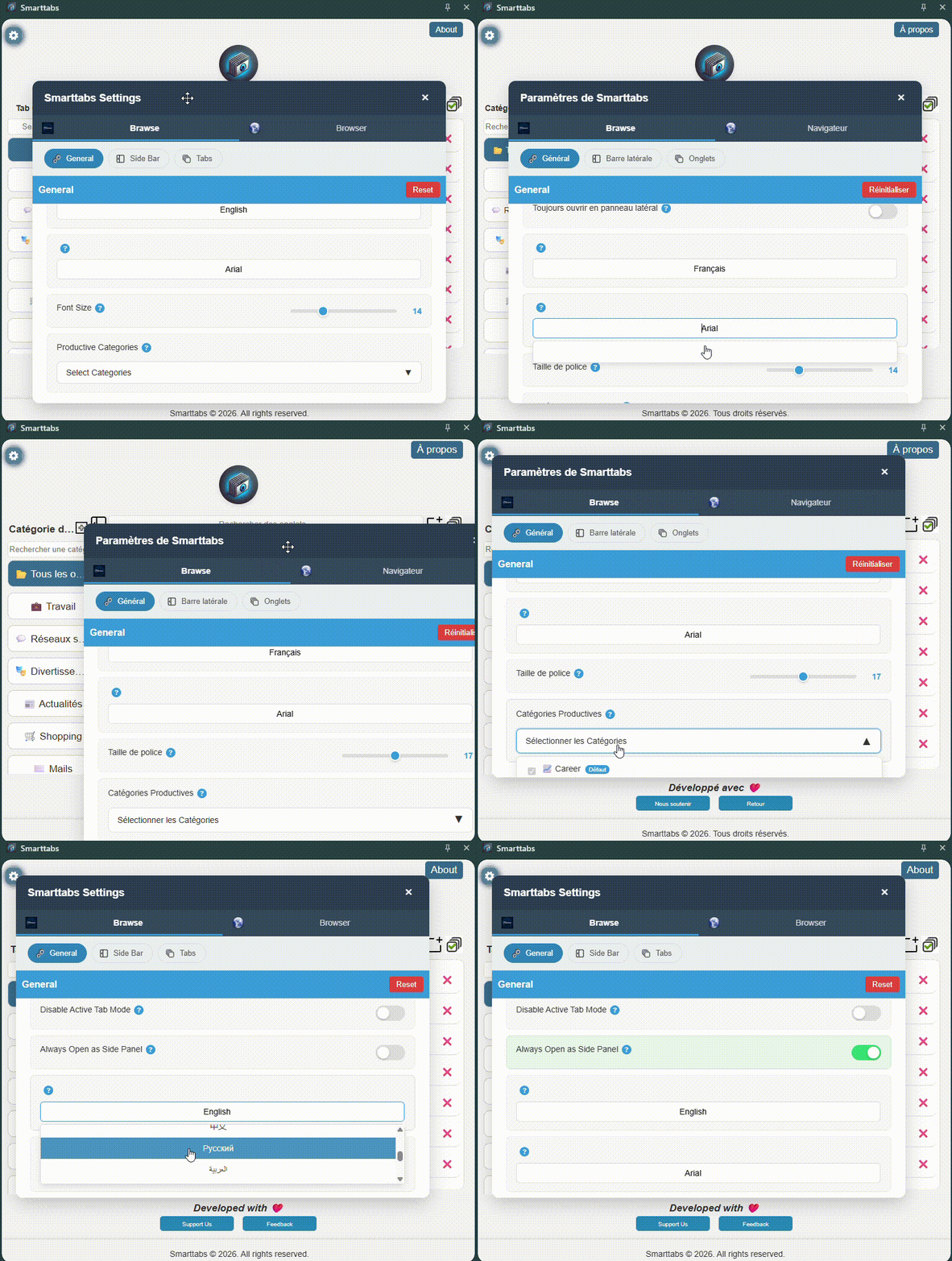
General Settings
Adjust the core functionalities of the extension.
- Active Tab Mode: Highlights the current tab. Default: On
- Language: Choose your preferred language. Default: English
- Font & Size: Customize the UI font and text size.
Appearance
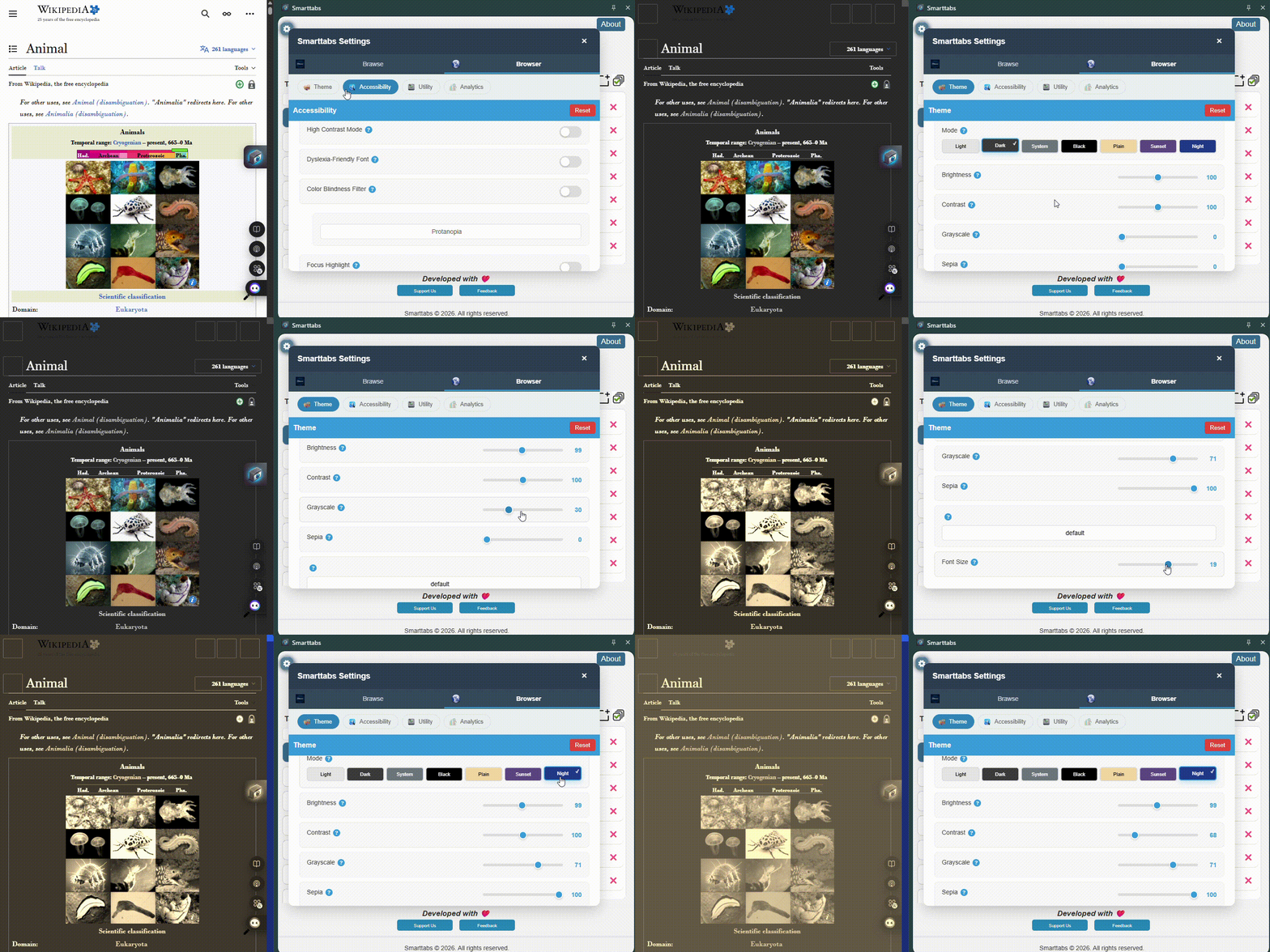
Personalize the look and feel of the extension.
- Theme: Switch between dark, light, or auto mode.
- Accent Color: Set the primary UI color.
- Background Opacity: Adjust transparency levels.
Accessibility
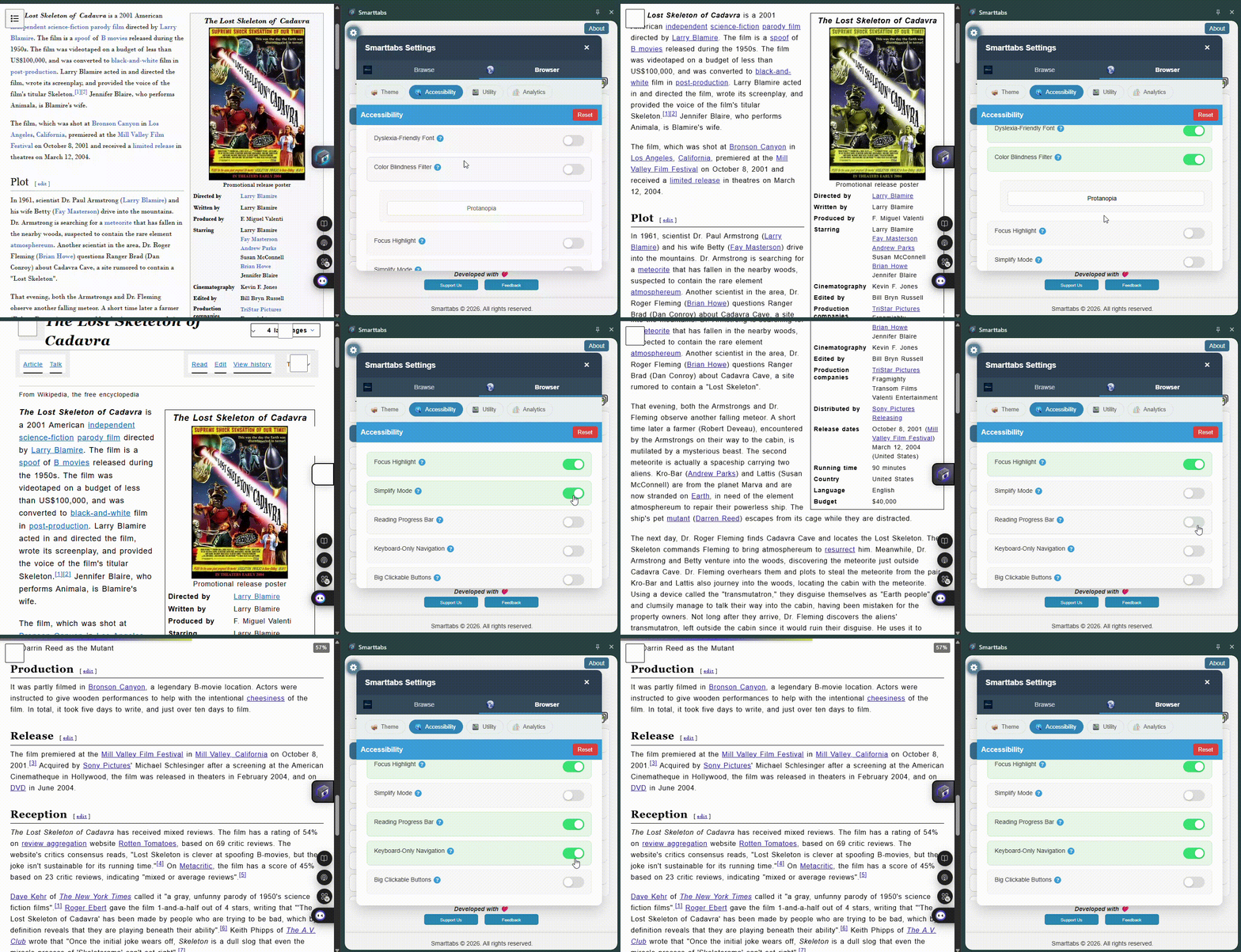
Enhance usability for all users.
High Contrast Mode
Improves readability by increasing contrast between foreground and background colors. Ideal for users with low vision or when using the app in very bright environments. (Default: Off)
Color Blindness Filter
Applies color transformations to the UI to accommodate common types of color vision deficiency. Available presets: Protanopia (red-weak), Deuteranopia (green-weak), Tritanopia (blue-weak), and Achromatopsia (greyscale).
Simplify Mode
Reduces visual clutter by hiding non-essential UI elements and animations, providing a cleaner reading and browsing experience.
Keyboard-Only Navigation
Ensures all interactive controls are reachable and usable via keyboard, with an intuitive tab order and visible focus states.
Big Clickable Buttons
Increases button sizes and hit targets to assist users with motor impairments and to improve touch accuracy on mobile devices.
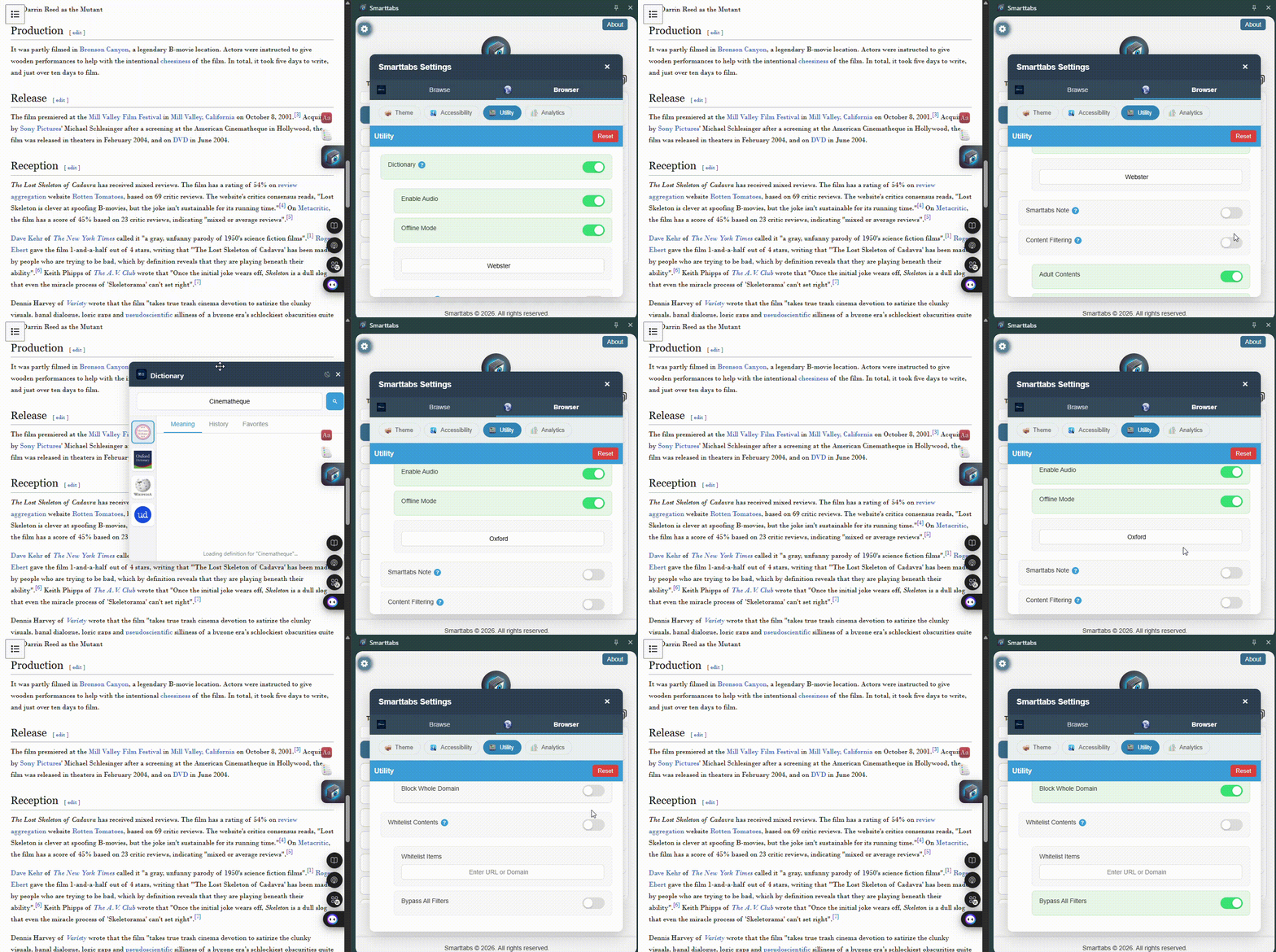
Utility
Manage data and backups.
- Auto Backup: Automatically save your data. Default: On
- Export Data: Save settings externally.
- Import Data: Restore settings from a backup.
User Guide
Master all the features and capabilities of Access Tab
Table of Contents
Getting Started
Welcome to Access Tab! This lightweight and powerful cross-browser extension helps you efficiently manage and organize your open tabs. After installation, you'll see the Access Tab icon in your browser toolbar.
Click the Access Tab Icon
Click the Access Tab icon in your toolbar to open the floating, resizable window or side panel interface.
View Your Tabs
Get a real-time overview of all your open tabs with automatic categorization and search functionality.
Start Organizing
Use drag-and-drop to organize tabs, create custom categories, and switch between tabs instantly.
Key Features
Instant Tab Switching
Instantly switch between tabs or close them directly from the Access Tab interface without navigating through browser tabs.
- One-click tab switching
- Direct tab closing from interface
- Real-time tab overview
- Toggle between all tabs or active window only
Dynamic Search
Quickly find tabs by title or URL with powerful search functionality that works across all your open tabs.
- Search by tab title
- Search by URL
- Real-time search results
- Category-specific search
Smart Categorization
Automatic tab categorization based on domain (Work, Social Media, News) with custom category creation options.
- Automatic domain-based categorization
- Custom categories with emoji icons
- Drag-and-drop tab organization
- Collapsible category sidebar
Advanced Features
Flexible Interface
Choose between floating resizable window or sidebar panel modes for optimal workflow integration.
Interface Options:
- Floating, resizable window
- Side panel mode (Chromium browsers)
- Auto-switch in fullscreen mode
- Responsive design with smooth animations
Custom Categories
Category Management:
- Create custom categories with emoji icons
- Assign tabs via right-click context menu
- Draggable modals for category editing
- Emoji suggestions for category icons
Drag & Drop Organization
Organization Features:
- Drag-and-drop tab reordering
- Move tabs between categories
- Collapsible category sections
- Visual feedback during drag operations
Using Access Tab
Here's how to make the most of Access Tab's powerful tab management features:
Interface Modes
- Popup Mode: Click the extension icon for a floating window
- Side Panel Mode: Automatically opens in Chromium browsers during fullscreen
- Resizable Window: Drag corners to resize the interface
- Responsive Design: Adapts to different screen sizes
Category Management
- Auto Categories: Work, Social Media, News based on domain
- Custom Categories: Create your own with emoji icons
- Context Menu: Right-click tabs to assign categories
- Drag & Drop: Move tabs between categories easily
Search & Navigation
- Dynamic Search: Find tabs by title or URL instantly
- Category Search: Search within specific categories
- Quick Switch: Click any tab to switch immediately
- Close Tabs: Close tabs directly from the interface
Keyboard Shortcuts
General
Navigation
Tips & Tricks
Pro Tip #1
Use the AI assistant to automatically fill forms by right-clicking on form fields and selecting "Smart Fill".
Pro Tip #2
Create custom automation rules in settings to automatically organize bookmarks based on website categories.
Pro Tip #3
Set up focus time goals to limit time spent on distracting websites and boost productivity.
Frequently Asked Questions
Find answers to common questions about Access Tab
How do I install Access Tab on my browser?
Installing Access Tab is simple and takes just a few clicks:
- Visit your browser's extension store (Chrome Web Store, Firefox Add-ons, etc.)
- Search for "Access Tab" or use our direct links
- Click "Add to [Browser]" and confirm the installation
- The Access Tab icon will appear in your toolbar
For detailed instructions, check the Installation Guide.
Which browsers are supported?
Access Tab currently supports:
- Chrome - Full feature support
- Firefox - Full feature support
- Edge - Full feature support
- Opera - Supported through the Chrome Web Store package
- Safari - Not currently supported
We recommend using the latest version of your browser for the best experience.
What are the main features of Access Tab?
Access Tab offers a comprehensive set of features:
- Smart Tab Manager - Categorize and filter tabs with ease, switch between "All Tabs" and "Focused Tabs"
- Distraction Blocker - Automatically detect and block distracting websites with intelligent filtering
- Built-in Productivity Analytics - Track time spent on different categories with daily, weekly, and monthly trends
- Custom Themes & Visual Control - Adjust contrast, brightness, and apply color filters with full theming controls
- Integrated Dictionary & Accessibility Tools - Dictionary lookups, dyslexia-friendly fonts, and color-blind modes
- Privacy-First Design - No third-party tracking, local storage of analytics and preferences
- Multilingual Support - Available in 12 languages including English, Français, Español, Deutsch, 日本語, 中文, and more
Learn more in our User Guide.
Can I customize the extension's appearance?
Yes! Access Tab offers extensive customization options:
- 12+ built-in themes (dark, light, and colorful options)
- Custom color schemes and transparency settings
- Adjustable interface elements and icon styles
- Personalized keyboard shortcuts and gestures
Access customization options through the settings menu in the extension popup.
How does Access Tab protect my privacy?
Privacy is our top priority. Access Tab includes several protection features:
- Local Data Storage - All data stays on your device
- Tracker Blocking - Blocks third-party trackers and analytics
- Cookie Management - Intelligent cookie filtering and cleanup
- Fingerprint Protection - Prevents browser fingerprinting
- No Data Collection - We don't collect or sell your personal data
What permissions does Access Tab need and why?
Access Tab requests the following permissions for core functionality:
- tabs - Required to read tab metadata (URL, title, status) to categorize and manage open tabs
- activeTab - Enables interaction with the current active tab for real-time filtering or analysis
- storage/unlimitedStorage - Used to persist user settings, filter rules, and analytics data locally across sessions
- scripting - Needed to inject scripts for UI rendering and content control (e.g., sidebar, block page)
- alarms - Powers periodic tasks such as session tracking and filter rule updates
- idle - Allows detection of user inactivity for accurate productivity analytics
- declarativeNetRequest/webRequest - Enables content blocking/filtering on specified websites based on user configuration
- sidePanel - Supports the tab management interface in a compact side panel format
- webNavigation - Helps detect and analyze user navigation patterns for session management
- host permissions (<all_urls>) - Required for universal tab management and consistent distraction-blocking across all websites
All permissions are essential for Access Tab's core purpose of focused, organized browsing and productivity enhancement.
Access Tab isn't working properly. What should I do?
Try these troubleshooting steps:
- Refresh the page - Sometimes a simple refresh fixes issues
- Restart your browser - Close and reopen your browser completely
- Check for updates - Ensure you have the latest version of Access Tab
- Disable other extensions - Test if other extensions are causing conflicts
- Clear browser cache - Clear your browser's cache and cookies
- Reinstall Access Tab - Remove and reinstall the extension
If issues persist, review the user guide and browser-specific settings sections.
The extension icon disappeared from my toolbar. How do I get it back?
If the Access Tab icon is missing from your toolbar:
- Look for the puzzle piece icon (extensions menu) in your toolbar
- Click it to see all your extensions
- Find Access Tab in the list and click the pin icon next to it
- The Access Tab icon should now appear in your toolbar
You can also access extensions through your browser's menu: More Tools → Extensions.
Why is Access Tab running slowly?
If Access Tab seems slow, try these solutions:
- Close unused tabs - Too many open tabs can slow down extensions
- Disable unused features - Turn off features you don't use in settings
- Clear extension data - Reset Access Tab settings to default
- Update your browser - Ensure you're using the latest browser version
- Check system resources - Close other resource-heavy applications
Is Access Tab free to use?
Yes! Access Tab is completely free with all core features included:
- Smart bookmarking and organization
- Reading mode and time tracking
- Basic AI assistance
- Privacy protection features
- Theme customization
The extension works without an account, and its data remains in your browser.
Where can I find troubleshooting help?
Use the documentation sections available on this page:
- User Guide - Learn the extension's workflows and features
- Settings - Review Access Tab and browser configuration
- Installation - Check browser-specific installation steps